Description:
This page will walk you through on how to set an image as your virtual background to personalize your meetings
Instructions:
Delhi backgrounds can be downloaded from the free backgrounds page, located in the "Related Articles' section of this page. Courtesy of the Marketing team.
- Sign in to the Zoom App/Client with SSO
- Click your profile picture then click Settings.
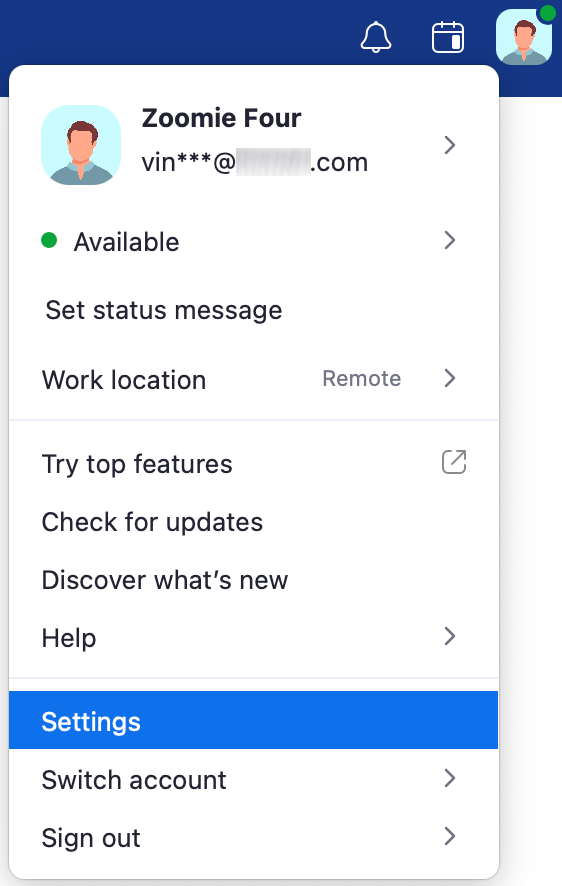
- Select Background and Effects.
- Note: If you do not have the Virtual Background tab and you have enabled it on the web portal, sign out of the Zoom Desktop Client and sign in again.
- Choose a background or click the + to add your own image or video

- Mirror my video lends to a more natural experience for the user
- Optional: Check I have a green screen if you have a physical green screen set up. You can then click on your video to select the correct color for the green screen.
Additional Info/Resources:
See 'Related Articles' for additional information.